Short answerUpload the photo, write one change and one keep line, then generate. Name the object, where it sits, and what must stay identical. One edit per prompt beats a paragraph of mixed requests.
Key takeaways
- A working AI photo editing prompt has a change line (what, where, result) and a keep line (faces, labels, framing, light).
- Local edits (remove, recolor, relight, swap an outfit) hold identity better than restyle or weather swaps.
- Outpainting works when you name the extra space and the existing crop, not when you ask the model to invent a new composition.
- Prompts fail when they stack several changes, rewrite printed type, or ask for a new face or body proportion.
- Run two or three variants, then fix one leftover error with a follow-up prompt instead of starting over.
To edit a photo with a text prompt, you describe the change in plain language on an image-to-image model. The model keeps the source pixels it can, and rewrites only the region your wording points at. That is different from generating a new picture from a caption.
The workflow is the same in most prompt-based editors. Open the photo, pick an image-to-image model, type the edit, inspect at full size, then iterate. In Recraft Studio the steps sit on one canvas: upload or generate, choose a model such as Nano Banana, GPT Image, or Flux, type the change, and export. The June 2025 natural language editing launch is the product note. This page is the prompt list.
How to write an AI photo editing prompt
Use two lines. The change line names the object, its location, and the result. The keep line names what must not move: faces, printed labels, crop, and lighting. Vague verbs such as “make it better” or “cinematic” give the model permission to restage the shot.
Change: [object] on the [left / right / background] to [result].
Keep: faces, printed labels, framing, and the existing light.
Then generate two or three outputs. Compare each to the original at 100% zoom. If one region is wrong, send a follow-up that names only that region. For brush-based inpainting and other non-prompt tools, see the general guide to editing images with AI.
12 edits that work
Each prompt below is copy-ready. Swap the nouns for your file. The keep line is the part most people skip, and the part that stops identity drift.
1. Remove an object
Point at the object and the surface it sits on, so the fill matches the wall, floor, or table.
Remove the trash can on the left sidewalk.
Keep the brick wall texture, the wet pavement, and the existing street light.
2. Change a background
Name the new setting and lock the subject’s edges. If you only say “new background,” the model often restyles the person too.
Replace the office background with a pale plaster wall and a single potted olive tree on the right.
Keep the person, pose, clothing, and face identical. Match the existing key light.
3. Recolor a product or garment
Give a specific color, not “brighter.” Recolor is a local material change. It should not invent a new cut.
Change the jacket from black leather to dark forest green leather.
Keep the cut, stitching, hardware, face, and studio lighting.
4. Relight the scene
Describe the new source and the time of day. Do not ask for a mood. Mood language restyles the grade and often the wardrobe.
Relight with a soft window from camera left, late afternoon, warm but still natural.
Keep the pose, wardrobe, and background geometry. Do not add new props.
5. Swap an outfit
Name fabric, cut, and color. Ask the model to keep the body volume and the original pose, or you get a new person wearing new clothes.
Swap the gray hoodie for a navy merino crewneck sweater, same fit.
Keep the face, hair, pose, jeans, and background.
6. Extend the frame
Outpainting needs the extra space named in real terms (above, left, more floor). “Make it wider” without a direction invents a second composition.
Extend the frame left and right to 16:9, continuing the same brick wall and sidewalk.
Keep the original subject, scale, and crop of the person unchanged.
7. Change a material
Useful for packaging and furniture studies. Name the current material so the model does not recast the object as a new product.
Change the oak tabletop to honed black marble with subtle white veining.
Keep the table legs, the objects on the table, and the window reflection direction.
8. Add one object
Give size relative to something already in the shot, plus contact shadow. “Add a plant” without scale drops a prop that floats.
Add a small ceramic cup of black coffee on the right of the laptop, matching the existing tabletop light, with a soft contact shadow.
Keep the laptop, hands, and background.
9. Change the weather
Weather is a lighting and atmosphere edit, not a location edit. Lock the architecture or you get a different street.
Add light rain and wet asphalt reflections. Keep the building facades, the cars, and the camera angle.
Do not add umbrellas or new pedestrians.
10. Shift time of day
Ask for a sun angle, not “golden hour magic.” The keep line should freeze window geometry and interior props.
Change the exterior from midday to blue hour, with interior tungsten visible through the windows.
Keep the building, signage layout, and camera position.
11. Restage a product
Move the hero, do not redraw the label. This is the edit product shots actually need, and the one labels break on if you skip the keep line.
Place the bottle on a white marble counter with a soft left-side window.
Keep the label artwork, typography, cap, and bottle proportions exactly.
12. Merge a subject from a second photo
Prompt-based editors that accept a reference image can composite if you name both files’ jobs. Recraft Studio matches lighting and scale when you describe the placement in words and attach the second frame.
Place the product from the second image onto the oak table in the first image, matching perspective and the existing window light.
Keep the room, the table, and the product label.
Which prompts fail, and why
Stacked requests fail first. “Remove the bin, change the sky, restyle as film, and make her smile” gives the model four licenses to rewrite identity. Split them.
Printed type fails next. Models still invent letterforms. If the label, logo, or poster must stay readable, say so, then check the type at 100%. If the type broke, do not prompt it again. Composite the original label in a layout tool.
Identity and anatomy fail when the keep line is missing. Outfit swaps, age changes, and “look at camera” often rebuild the face. Relight and recolor are safer when the person has to remain the same person.
Scale fails when you add objects without a size reference. “Add a dog” can drop a toy or a horse. Measure against something already in the frame (“knee-high,” “same width as the laptop”).
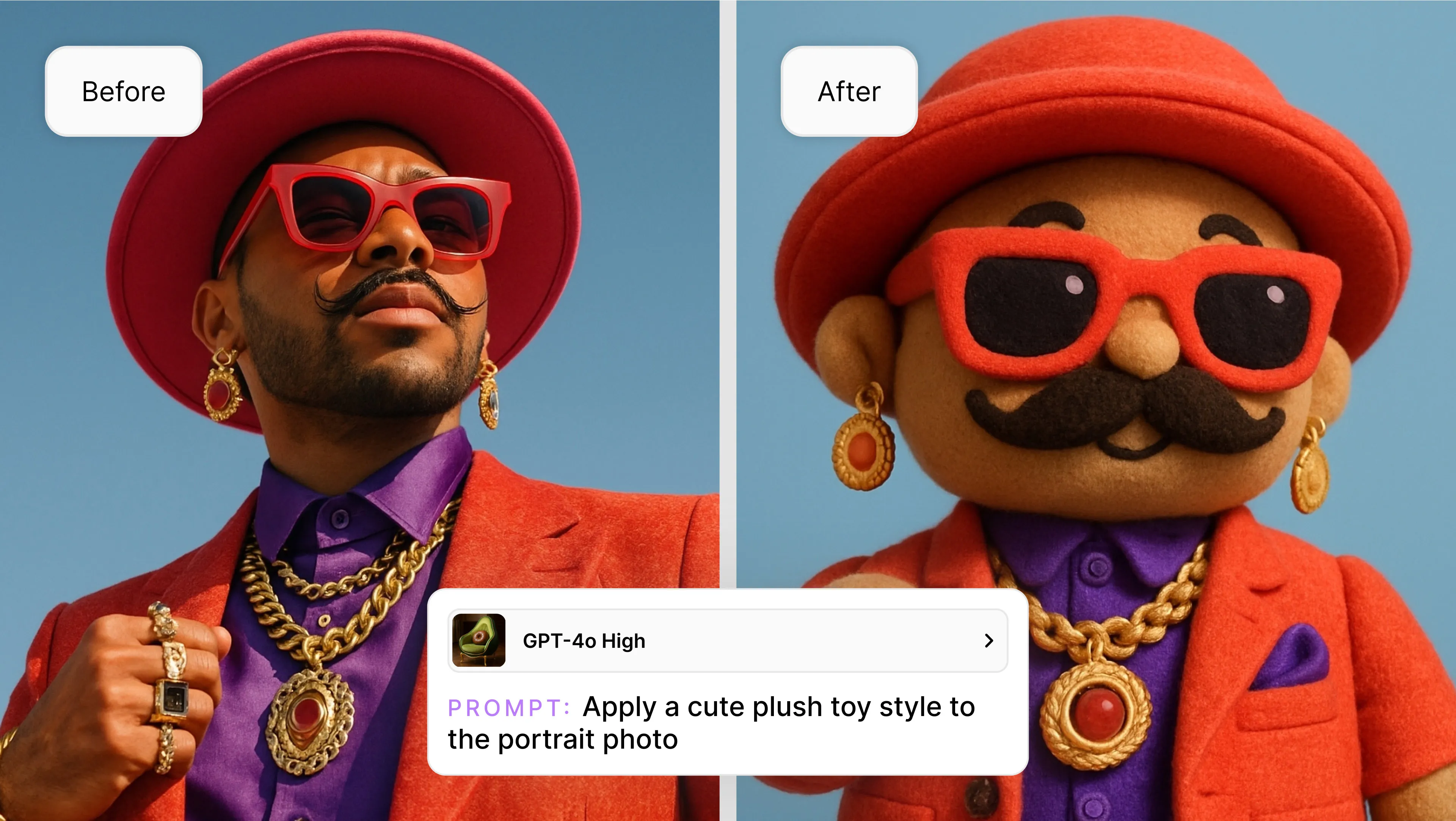
Full restyles (“make it anime,” “make it a painting”) are not photo edits. They replace the photograph. Use them when you want a new picture, not a retouch.
Try the next edit
Pick one photo with a single problem. Write the two-line prompt, generate three variants, and keep the one that respects the keep line at full size. Open the prompt-based AI image editor in Recraft Studio and run the first prompt there. Try it free.